トラッキング コード

3/19/2016

BottomSheet vis Android Design Support Library 23.2.0

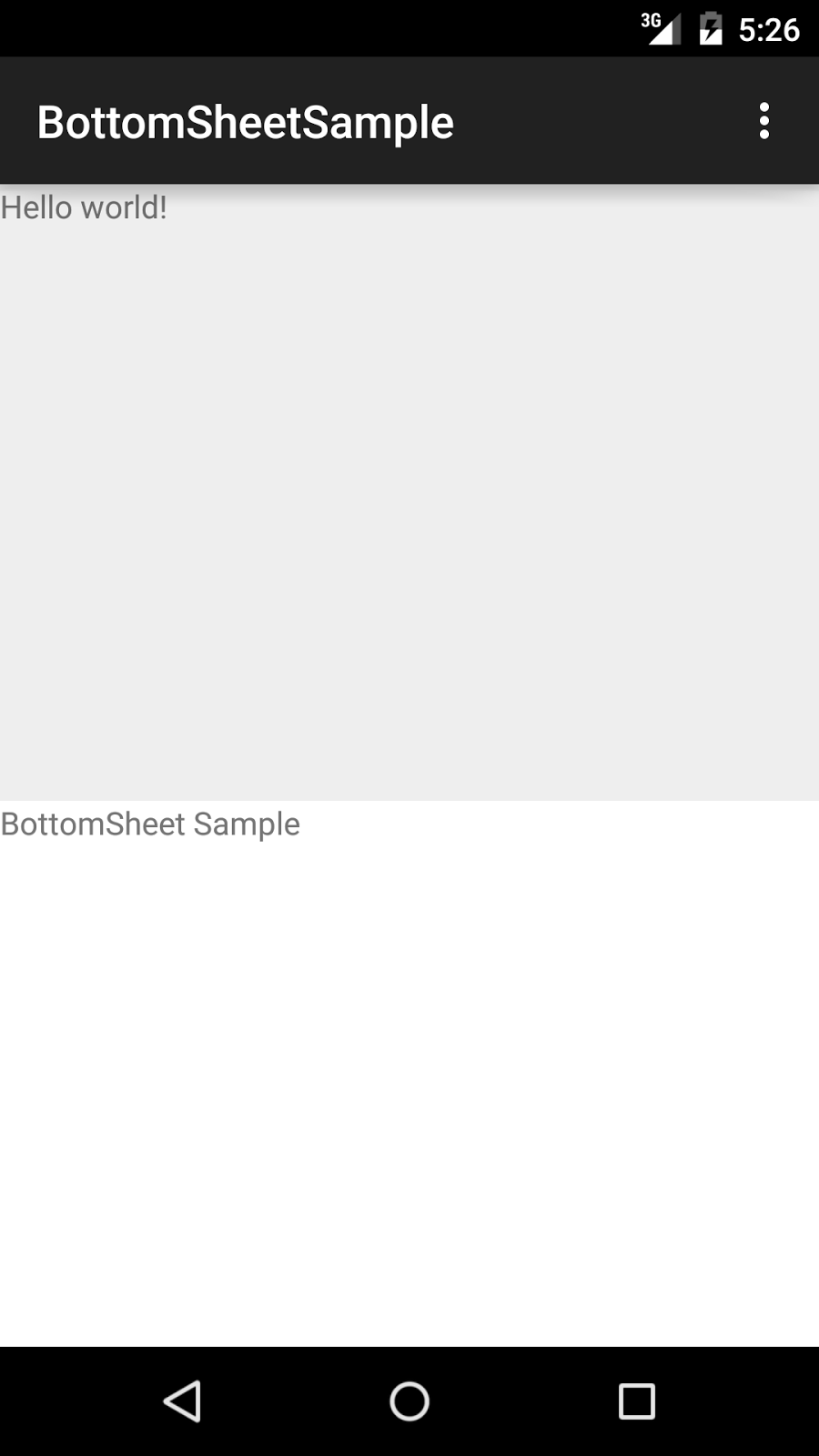
Android Design Support Library had added BottomSheet from ver.23.2.
We can implement BottomSheet design like a GoogleMap.


AOSP: BottomSheetBehavior.java

Layout Sample

We add the param app:layout_behavior="@string/bottom_sheet_behavior" in child view of CoordinatorLayout.
<android.support.design.widget.CoordinatorLayout
        xmlns:android="http://schemas.android.com/apk/res/android"
        xmlns:tools="http://schemas.android.com/tools"
        xmlns:app="http://schemas.android.com/apk/res-auto"
        android:layout_width="match_parent"
        android:layout_height="match_parent"
        tools:context=".MainActivity">

    <LinearLayout
            android:layout_width="match_parent"
            android:layout_height="match_parent"
            android:orientation="vertical"
            app:layout_behavior="@string/bottom_sheet_behavior"
            app:behavior_peekHeight="240dp"
            app:behavior_hideable="false"
            android:background="@android:color/white">
        <TextView
                android:layout_width="match_parent"
                android:layout_height="match_parent"
                android:text="BottomSheet Sample"/>
    </LinearLayout>
</android.support.design.widget.CoordinatorLayout>

We cab add following params.

  • app:behavior_peekHeight
    • BottomSheet minimum size
  • app:behavior_hideable
    • BottomSheet is hidden when scroll to bottom.

6/21/2015

CoordinatorLayout has problem which registered to Issue Tracker.

CoordinatorLayout has problem which registered to Issue Tracker.

Do not show display when Screen rotate

If your Activity has configChanges that write on AndroidManifest.xml, CoordinatorLayout do not show display when screen rotate.
You can reproduct, Landscape to Portrait.


This had been registered to AOSP Issue Tracker.
CoordinatorLayout in design support library does not update child size on rotation
layout_behavior view height doesn't restore when keyboard goes down / ActionBar ActionView partially visible

AppBarLayout do not Animation

AppBarLayout do not Animation, release touch event.
I think we can implement show / dismiss animation with touch event listener and Behavior#onNestedFling.
Please advise us best practice.

Toolbar should settle when only partially scrolled

6/08/2015

Hot to use TextInputLayout , Android Support library v22.2

I can implement Text field of Material Design too easy.
http://www.google.com/design/spec/components/text-fields.html#text-fields-single-line-text-field


    <android.support.design.widget.TextInputLayout
            android:id="@+id/textInputLayout"
            android:layout_width="wrap_content"
            android:layout_height="wrap_content"
            app:hintTextAppearance="@style/TextInputLayoutHintAppearance">
        <EditText
                android:id="@+id/editText"
                android:layout_width="wrap_content"
                android:layout_height="wrap_content"
                android:inputType="textEmailAddress"
                android:hint="HintText"
                android:ems="10"/>
    </android.support.design.widget.TextInputLayout>


The each parts color is material color.

5/29/2015

Hot to use FloatingActionButton , Android Support library v22.2

Google had updated Android Support library!!
We can use the Design Support Library which include Material Design components.

http://developer.android.com/tools/support-library/index.html

import library

The following code is sample for Android Studio.
Note : typo in Android Developers site http://developer.android.com/tools/support-library/features.html#design

    compile 'com.android.support:design:22.2.0'

FloatingActionButton

The following code is sample for Layout.

    <android.support.design.widget.FloatingActionButton
            android:id="@+id/floating_action_button"
            android:layout_height="wrap_content"
            android:layout_width="wrap_content"
            android:src="@drawable/XXXX"
            android.support.design:backgroundTint="@color/fab_bg"
            android:contentDescription="@string/XXXX"/>
Default Fab Color is "colorAccent". If use other color, we can set android.support.design:backgroundTint.


Note

Design Library(ver 22.2) has some issues.
FAB doesn't have shadow on Lollipop https://code.google.com/p/android/issues/detail?id=175068
The FloatingActionButton has different margins on Lollipop and pre-Lollipop. https://code.google.com/p/android/issues/detail?id=175330

If not show "Shadow", set "app:borderWidth="0dp".

4/29/2015

How to IntentsTestRule, in AndroidTest


About IntentsTestRule

IntentsTestRule is AndroidTest which can do intent test.

If use, we have to add Espresso-Intents library in build.gradle.
    androidTestCompile 'com.android.support.test.espresso:espresso-intents:2.1'

Test Sample

The following code is sample which Intent has Intent.ACTION_CALL by user operation.
@RunWith(AndroidJUnit4.class)
@LargeTest
public class MainActivityIntentTest {

    @Rule
    public IntentsTestRule<MainActivity> mActivityRule = new IntentsTestRule<>(
            MainActivity.class);

    @Before
    public void stubAllExternalIntents() {
        // By default Espresso Intents does not stub any Intents. Stubbing needs to be setup before
        // every test run. In this case all external Intents will be blocked.
        intending(not(isInternal()))
                .respondWith(new Instrumentation.ActivityResult(Activity.RESULT_OK, null));
    }

    @Test
    public void callPhone() {
        // call action
        onView(withId(R.id.callButton)).perform(click());

        // test
        intended(allOf(
                hasAction(Intent.ACTION_CALL),
                hasData("tel:0123456789"),
                toPackage("com.android.server.telecom")));

    }
}
How to create test class.
  • create test class with RunWith annotation
  • add IntentsTestRule with Rule annotation

We can check whether Intent has occurred.
  • Intended method which check the intended Intent
  • matches method


  • Add Intent to Starting Activity

    If need to add Intent to Activity, we need to do override IntentsTestRule#getActivityIntent.
        @Rule
        public IntentsTestRule<MainActivity> mActivityRule = new IntentsTestRule<>(MainActivity.class) {
    
            /**
            * add Intent to Activity
            */
            @Override
            protected Intent getActivityIntent() {
                Intent intent = new Intent();
                intent.putExtra(KEY_DATA,data);
                return intent;
            }
        };
    

    https://github.com/googlesamples/android-testing

    3/01/2015

    How to check Toast window, on android test-kit Espresso

    If we read the following public document, we can check other window.
    Using inRoot to target non-default windows

    onView(withText("South China Sea"))
      .inRoot(withDecorView(not(is(getActivity().getWindow().getDecorView()))))
      .perform(click());
    

    But, I think this is not cool.

    We can create a custom matcher.
    Toast window has the WindowManager.LayoutParams.TYPE_TOAST.

    The followinf code is sample.
        /**
         * Matcher that is Toast window.
         */
        public static Matcher<Root> isToast() {
            return new TypeSafeMatcher<Root>() {
    
                @Override
                public void describeTo(Description description) {
                    description.appendText("is toast");
                }
    
                @Override
                public boolean matchesSafely(Root root) {
                    int type = root.getWindowLayoutParams().get().type;
                    if ((type == WindowManager.LayoutParams.TYPE_TOAST)) {
                        IBinder windowToken = root.getDecorView().getWindowToken();
                        IBinder appToken = root.getDecorView().getApplicationWindowToken();
                        if (windowToken == appToken) {
                            // windowToken == appToken means this window isn't contained by any other windows.
                            // if it was a window for an activity, it would have TYPE_BASE_APPLICATION.
                            return true;
                        }
                    }
                    return false;
                }
            };
        }
    

    2/09/2015

    How to use Code Coverage at Android Studio

    How to set the Code Coverage in build.gradle

    We need to add "testCoverageEnabled". The following build.gradle is sample.

    android {
        buildTypes {
            release {
                minifyEnabled false
                proguardFiles getDefaultProguardFile('proguard-android.txt'), 'proguard-rules.txt'
            }
    
    +        debug {
    +            testCoverageEnabled = true
    +        }
        }
    }
    

    How to excute Code Coverage

    We need to excute Code Coverage from terminal.

    ./gradlew createDebugCoverageReport
    

    When excute Code Coverage, automatically Gradle run the androidTest.
    If not connected device(or Emulator), you shold show the following error.

    :app:connectedAndroidTest FAILED          
                  
    FAILURE: Build failed with an exception.
                  
    * What went wrong:
    Execution failed for task ':app:connectedAndroidTest'.
    > com.android.builder.testing.api.DeviceException: java.lang.RuntimeException: No connected devices!
    

    We need to connect device or wake up Emulator.

    How to show the Code Covoerage Report

    If successed createDebugCoverageReport、Gradle saved report in the following path.
    [PROJECT]/app/build/outputs/reports/coverage/debug/index.html

    We can investigate the none test Line.