トラッキング コード

Showing posts with label Android App Developer. Show all posts

9/05/2016

Android Binding AppCompatEditText: Add TextWatcher

We should implement TextWatcher interface, due to listen to change text.

public TextWatcher getEditTextWatcher() {
    return new TextWatcher() {
        @Override
        public void beforeTextChanged(CharSequence charSequence, int start, int count,
                int after) {

        }

        @Override
        public void onTextChanged(CharSequence charSequence, int start, int before, int count) {
            // FIXME: when change text
        }

        @Override
        public void afterTextChanged(Editable editable) {

        }
    };
}

set to app:addTextChangedListener on Layout file.

<data>
    <variable name="fragment"
              type="jp.baroqueworksdev.sample.SampleFragment"/>
</data>
<android.support.v7.AppCompatEditText
        app:addTextChangedListener="@{fragment.getEditTextWatcher}"/>

3/19/2016

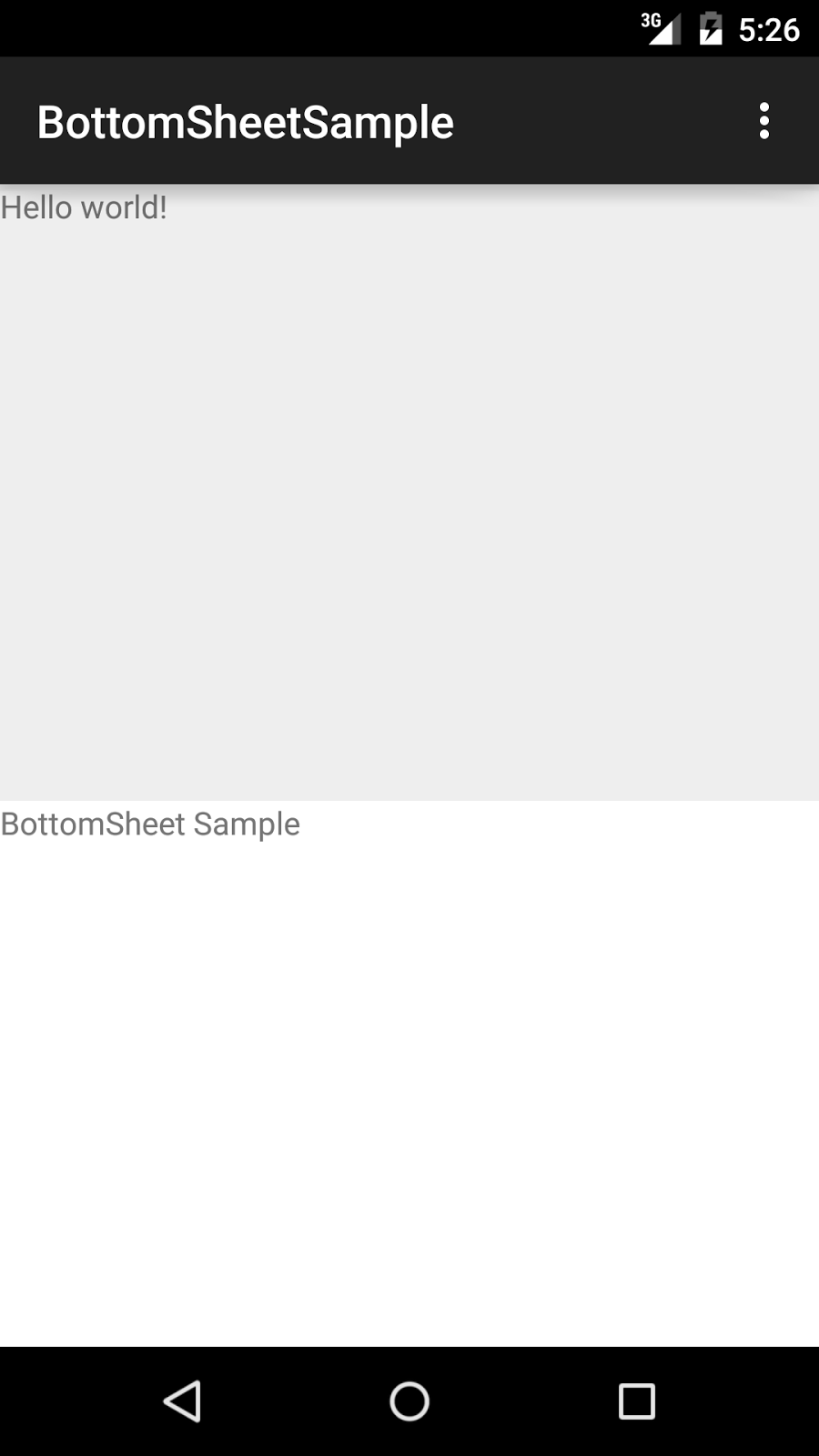
BottomSheet vis Android Design Support Library 23.2.0

Android Design Support Library had added BottomSheet from ver.23.2.
We can implement BottomSheet design like a GoogleMap.


AOSP: BottomSheetBehavior.java

Layout Sample

We add the param app:layout_behavior="@string/bottom_sheet_behavior" in child view of CoordinatorLayout.
<android.support.design.widget.CoordinatorLayout
        xmlns:android="http://schemas.android.com/apk/res/android"
        xmlns:tools="http://schemas.android.com/tools"
        xmlns:app="http://schemas.android.com/apk/res-auto"
        android:layout_width="match_parent"
        android:layout_height="match_parent"
        tools:context=".MainActivity">

    <LinearLayout
            android:layout_width="match_parent"
            android:layout_height="match_parent"
            android:orientation="vertical"
            app:layout_behavior="@string/bottom_sheet_behavior"
            app:behavior_peekHeight="240dp"
            app:behavior_hideable="false"
            android:background="@android:color/white">
        <TextView
                android:layout_width="match_parent"
                android:layout_height="match_parent"
                android:text="BottomSheet Sample"/>
    </LinearLayout>
</android.support.design.widget.CoordinatorLayout>

We cab add following params.

  • app:behavior_peekHeight
    • BottomSheet minimum size
  • app:behavior_hideable
    • BottomSheet is hidden when scroll to bottom.


6/21/2015

CoordinatorLayout has problem which registered to Issue Tracker.

CoordinatorLayout has problem which registered to Issue Tracker.

Do not show display when Screen rotate

If your Activity has configChanges that write on AndroidManifest.xml, CoordinatorLayout do not show display when screen rotate.
You can reproduct, Landscape to Portrait.


This had been registered to AOSP Issue Tracker.
CoordinatorLayout in design support library does not update child size on rotation
layout_behavior view height doesn't restore when keyboard goes down / ActionBar ActionView partially visible

AppBarLayout do not Animation

AppBarLayout do not Animation, release touch event.
I think we can implement show / dismiss animation with touch event listener and Behavior#onNestedFling.
Please advise us best practice.

Toolbar should settle when only partially scrolled

6/08/2015

Hot to use TextInputLayout , Android Support library v22.2

I can implement Text field of Material Design too easy.
http://www.google.com/design/spec/components/text-fields.html#text-fields-single-line-text-field


    <android.support.design.widget.TextInputLayout
            android:id="@+id/textInputLayout"
            android:layout_width="wrap_content"
            android:layout_height="wrap_content"
            app:hintTextAppearance="@style/TextInputLayoutHintAppearance">
        <EditText
                android:id="@+id/editText"
                android:layout_width="wrap_content"
                android:layout_height="wrap_content"
                android:inputType="textEmailAddress"
                android:hint="HintText"
                android:ems="10"/>
    </android.support.design.widget.TextInputLayout>


The each parts color is material color.

5/29/2015

Hot to use FloatingActionButton , Android Support library v22.2

Google had updated Android Support library!!
We can use the Design Support Library which include Material Design components.

http://developer.android.com/tools/support-library/index.html

import library

The following code is sample for Android Studio.
Note : typo in Android Developers site http://developer.android.com/tools/support-library/features.html#design

    compile 'com.android.support:design:22.2.0'

FloatingActionButton

The following code is sample for Layout.

    <android.support.design.widget.FloatingActionButton
            android:id="@+id/floating_action_button"
            android:layout_height="wrap_content"
            android:layout_width="wrap_content"
            android:src="@drawable/XXXX"
            android.support.design:backgroundTint="@color/fab_bg"
            android:contentDescription="@string/XXXX"/>
Default Fab Color is "colorAccent". If use other color, we can set android.support.design:backgroundTint.


Note

Design Library(ver 22.2) has some issues.
FAB doesn't have shadow on Lollipop https://code.google.com/p/android/issues/detail?id=175068
The FloatingActionButton has different margins on Lollipop and pre-Lollipop. https://code.google.com/p/android/issues/detail?id=175330

If not show "Shadow", set "app:borderWidth="0dp".

2/09/2015

How to use Code Coverage at Android Studio

How to set the Code Coverage in build.gradle

We need to add "testCoverageEnabled". The following build.gradle is sample.

android {
    buildTypes {
        release {
            minifyEnabled false
            proguardFiles getDefaultProguardFile('proguard-android.txt'), 'proguard-rules.txt'
        }

+        debug {
+            testCoverageEnabled = true
+        }
    }
}

How to excute Code Coverage

We need to excute Code Coverage from terminal.

./gradlew createDebugCoverageReport

When excute Code Coverage, automatically Gradle run the androidTest.
If not connected device(or Emulator), you shold show the following error.

:app:connectedAndroidTest FAILED          
              
FAILURE: Build failed with an exception.
              
* What went wrong:
Execution failed for task ':app:connectedAndroidTest'.
> com.android.builder.testing.api.DeviceException: java.lang.RuntimeException: No connected devices!

We need to connect device or wake up Emulator.

How to show the Code Covoerage Report

If successed createDebugCoverageReport、Gradle saved report in the following path.
[PROJECT]/app/build/outputs/reports/coverage/debug/index.html

We can investigate the none test Line.


1/17/2015

How to add Volley Request with parameter of POST and Headers

If need to add parameter of POST and Headers, you need to read the following source code.
There are getHeaders() and getParams() in Request class which is super class of StringRequest class.
     /**
     * Returns a list of extra HTTP headers to go along with this request. Can
     * throw {@link AuthFailureError} as authentication may be required to
     * provide these values.
     * @throws AuthFailureError In the event of auth failure
     */
    public Map<String, String> getHeaders() throws AuthFailureError {
        return Collections.emptyMap();
    }

     /**
     * Returns a Map of parameters to be used for a POST or PUT request.  Can throw
     * {@link AuthFailureError} as authentication may be required to provide these values.
     *
     * <p>Note that you can directly override {@link #getBody()} for custom data.</p>
     *
     * @throws AuthFailureError in the event of auth failure
     */
    protected Map<String, String> getParams() throws AuthFailureError {
        return null;
    }

We can add parameter when do override getHeaders() and getParams() method.The following source is sample.


    /**
     * Request(StringRequest) with params
     *
     * @param url      request url
     * @param listener listener for Response or Error
     * @param params   value of setting Http Params
     * @param headers  value of setting Http headers
     */
    public void get(String url, final ResponseListener listener, final Map<String, String> params
            , final Map<String, String> headers) {
 
        StringRequest request = new StringRequest(url,
                new Response.Listener<String>() {
                    @Override
                    public void onResponse(String s) {
                        listener.onResponse(s);
                    }
                },
                new Response.ErrorListener() {
                    @Override
                    public void onErrorResponse(VolleyError volleyError) {
                        listener.onErrorResponse(volleyError);
                    }
                }
        ) {
            @Override
            protected Map<String, String> getParams() throws AuthFailureError {
                return params;
            }
 
            @Override
            public Map<String, String> getHeaders() throws AuthFailureError {
                return headers;
            }
        };
 
        mRequestQueue.add(request);
    }

7/27/2014

How to handle to auto flip with ViewFlipper

ViewFlipper do not have a handler to auto flipping.
If do handing, we should get Animation Class via VewFlipper#getInAnimation().
We register to Listener.


The follow code is sample.
    public View onCreateView(LayoutInflater inflater, ViewGroup container, Bundle savedInstanceState) {

        View view = inflater.inflate(R.layout.fragment_flashing_card, null);
        mVewFlipper = (ViewFlipper) view.findViewById(R.id.viewFlipper1);

        mVewFlipper.setAutoStart(true);
        mVewFlipper.setInAnimation(getActivity(), android.R.anim.slide_in_left);
        mVewFlipper.getInAnimation().setAnimationListener(this);
        mVewFlipper.setFlipInterval(2000);

        return view;
    }

    @Override
    public void onAnimationEnd(Animation animation) {
    }

    @Override
    public void onAnimationRepeat(Animation animation) {
    }

    @Override
    public void onAnimationStart(Animation animation) {
    }

3/30/2014

How to use SwipeRefreshLayout, like a twitter, facebook


Create the Layout

You need to use the android.support.v4.widget.SwipeRefreshLayout.
Content is included SwipeRefreshLayout for clild layout( or view).

<android.support.v4.widget.SwipeRefreshLayout xmlns:android="http://schemas.android.com/apk/res/android"
    android:id="@+id/swipe_refresh_widget"
    android:layout_width="match_parent"
    android:layout_height="match_parent">
    
    <!-- some full screen pullable view that will be the offsetable content -->

    <ListView
        android:layout_width="match_parent"
        android:layout_height="match_parent"
        android:id="@+id/content"/>
</android.support.v4.widget.SwipeRefreshLayout>


Update for Swipe

You need the following step, due to updating for Swipe.
1. call setOnRefreshListener methiod due to setting Listener which handles the update starting.
2. onRefresh() is handled the update starting.
3. Then your update process finish、call setRefreshing(false).
    @Override
    protected void onCreate(Bundle savedInstanceState) {
        super.onCreate(savedInstanceState);
        setContentView(R.layout.sample_swipe_refresh_widget);
        mSwipeRefreshLayout = (SwipeRefreshLayout) findViewById(R.id.swipe_refresh_widget);
        mSwipeRefreshLayout.setOnRefreshListener(this);
    }


    @Override
    public void onRefresh() {
        refresh();
    }

    private void refresh() {
        Message msg = mHander.obtainMessage(0, this);
        mHander.sendMessageDelayed(msg, 1000);
    }

    private static Handler mHander = new Handler() {
        @Override
        public void handleMessage(Message msg) {
            SwipeRefreshLayoutActivity actibity = (SwipeRefreshLayoutActivity) msg.obj;
            actibity.mSwipeRefreshLayout.setRefreshing(false);
        }
    };

3/15/2014

How to use Google Play services

Ready to use Google Play services

If you need to use Google Play services API, you should do download of Google Play services on Android SDK Manager.Google Play services was saved in following directory.<AndroidSDK>\sdk\extras\google\google_play_services\libproject\google-play-services_lib

Importing this Android Project to eclipse.

You must write a meta-data in AndroidMaifest.xml using Google Play services API.

    <application
        <meta-data
            android:name="com.google.android.gms.version"
            android:value="@integer/google_play_services_version" />
    </application>

Check to exist of Google Play services

You shoud Check to exist of Google Play services in a device.

public class UsingGooglePlayServiceSampleActivity extends FragmentActivity {

    private boolean isGooglePlayServicesAvailable() {
        int resultCode = GooglePlayServicesUtil.isGooglePlayServicesAvailable(this);

        if (ConnectionResult.SUCCESS == resultCode) {
            return true;
        } else {
            Dialog dialog = GooglePlayServicesUtil.getErrorDialog(resultCode, this,
                    CONNECTION_FAILURE_RESOLUTION_REQUEST);
            if (dialog != null) {
                ErrorDialogFragment errorFragment = new ErrorDialogFragment();
                errorFragment.setDialog(dialog);
                errorFragment.show(getSupportFragmentManager(), "errro_dialog");
            }
        }

        return false;
    }

    public static class ErrorDialogFragment extends DialogFragment {

        private Dialog mDialog;

        public ErrorDialogFragment() {
            super();
            mDialog = null;
        }

        public void setDialog(Dialog dialog) {
            mDialog = dialog;
        }

        @Override
        public Dialog onCreateDialog(Bundle savedInstanceState) {
            return mDialog;
        }

        @Override
        public void onDestroy() {
            mDialog = null;
            super.onDestroy();
        }
    }
}

Calling a method of GooglePlayServicesUtil.isGooglePlayServicesAvailable(), you can get Result code.If Result code is error, you can get a Dialog Object from calling method GooglePlayServicesUtil.getErrorDialog().You must use a DialogFragment to show a dialog.

If User close a dialog, onActivityResult is called with Result Code.

    protected void onActivityResult(int requestCode, int resultCode, Intent data) {
        if (requestCode == CONNECTION_FAILURE_RESOLUTION_REQUEST) {
            if (resultCode == Activity.RESULT_OK) {
                // retry process
            }
        }
    }

2/01/2014

Add "disable swipe" to ViewPager.

I want to stop swipe in ViewPager. But ViewPager does not have "disable swipe" API.

Creat a custom ViewPager

I creat a custom ViewPager. Custom ViewPager has a "disable swipe" API.

package jp.baroqueworksdev.myapidemo.view;

import android.content.Context;
import android.support.v4.view.ViewPager;
import android.util.AttributeSet;
import android.view.MotionEvent;

public class MyViewPager extends ViewPager {
    private boolean mIsEnabledSwipe = true;

    public MyViewPager(Context context) {
        super(context);
    }

    public MyViewPager(Context context, AttributeSet attrs) {
        super(context, attrs);
    }

    @Override
    public boolean onTouchEvent(MotionEvent event) {
        if (!mIsEnabledSwipe) {
            return false;
        }
        return super.onTouchEvent(event);
    }

    @Override
    public boolean onInterceptTouchEvent(MotionEvent event) {
        if (!mIsEnabledSwipe) {
            return false;
        }
        return super.onInterceptTouchEvent(event);
    }

    public void setEnabledSwipe(boolean enabled) {
        mIsEnabledSwipe = enabled;
    }

}

12/28/2013

How to use a Sensor of "TYPE_STEP_DETECTOR"

A sensor of this type triggers an event each time a step is taken by the user.

http://developer.android.com/reference/android/hardware/Sensor.html#TYPE_STEP_DETECTOR


Initialize Sensor

We have to get a Sensor's Object from SensorManager.
Set the type "Sensor.TYPE_STEP_DETECTOR".
public class StepCounterActivity extends Activity {
    private SensorManager mSensorManager;
    private Sensor mStepSensor;
    private TextView mTextView;

    @Override
    protected void onCreate(Bundle savedInstanceState) {
        super.onCreate(savedInstanceState);
        setContentView(R.layout.activity_main);

        mTextView = (TextView) findViewById(R.id.text_step);

        mSensorManager = (SensorManager) getSystemService(SENSOR_SERVICE);
        mStepSensor = mSensorManager.getDefaultSensor(Sensor.TYPE_STEP_DETECTOR);

    }

    protected void onResume() {
        super.onResume();
        mSensorManager.registerListener(mSensorEventListener, mStepSensor,
                SensorManager.SENSOR_DELAY_NORMAL);
    }

    protected void onPause() {
        super.onPause();
        mSensorManager.unregisterListener(mSensorEventListener);
    }


Create a SensorListener

We can get a trigger from onSensorChanged.

    private SensorEventListener mSensorEventListener = new SensorEventListener() {
        private int mStep;

        @Override
        public void onAccuracyChanged(Sensor sensor, int accuracy) {

        }

        @Override
        public void onSensorChanged(SensorEvent event) {
            if (event.values[0] == 1.0f) {
                mStep++;
            }
            mTextView.setText(Integer.toString(mStep));
        }
    };

12/27/2013

How to use a Sensor of "TYPE_STEP_COUNTER"

Android API 19 add Sensor of "TYPE_STEP_COUNTER".

http://developer.android.com/reference/android/hardware/Sensor.html#TYPE_STEP_COUNTER


Initialize Sensor

We have to get a Sensor's Object from SensorManager.
Set the type "Sensor.TYPE_STEP_COUNTER".
public class StepCounterActivity extends Activity {
    private SensorManager mSensorManager;
    private Sensor mStepSensor;
    private TextView mTextView;

    @Override
    protected void onCreate(Bundle savedInstanceState) {
        super.onCreate(savedInstanceState);
        setContentView(R.layout.activity_main);

        mTextView = (TextView) findViewById(R.id.text_step);

        mSensorManager = (SensorManager) getSystemService(SENSOR_SERVICE);
        mStepSensor = mSensorManager.getDefaultSensor(Sensor.TYPE_STEP_COUNTER);

    }

    protected void onResume() {
        super.onResume();
        mSensorManager.registerListener(mSensorEventListener, mStepSensor,
                SensorManager.SENSOR_DELAY_NORMAL);
    }

    protected void onPause() {
        super.onPause();
        mSensorManager.unregisterListener(mSensorEventListener);
    }


Create a SensorListener

We can get a step from onSensorChanged.
"event.values[0]" is a step counter.A sensor of this type returns the number of steps taken by the user since the last reboot while activated. The value is returned as a float (with the fractional part set to zero) and is reset to zero only on a system reboot.

    private SensorEventListener mSensorEventListener = new SensorEventListener() {
        private float mStepOffset;

        @Override
        public void onAccuracyChanged(Sensor sensor, int accuracy) {

        }

        @Override
        public void onSensorChanged(SensorEvent event) {
            if (mStepOffset == 0) {
                mStepOffset = event.values[0];
            }
            mTextView.setText(Float.toString(event.values[0] - mStepOffset));
        }
    };

12/21/2013

How to use the DrawerLayout like a slide menu of the "Google Play"

Android Developers Site

http://developer.android.com/training/implementing-navigation/nav-drawer.html


Creat a layout file

You shoud create a layout file using DrawerLayout in android.support.v4.widget.

<?xml version="1.0" encoding="utf-8"?>
<android.support.v4.widget.DrawerLayout xmlns:android="http://schemas.android.com/apk/res/android"
    android:id="@+id/drawer_layout"
    android:layout_width="match_parent"
    android:layout_height="match_parent" >

    <!-- The main content view -->

    <FrameLayout
        android:id="@+id/content_frame"
        android:layout_width="match_parent"
        android:layout_height="match_parent" />

    <!-- The navigation drawer -->

    <ListView
        android:id="@+id/left_drawer"
        android:layout_width="240dp"
        android:layout_height="match_parent"
        android:layout_gravity="start"
        android:background="#111"
        android:choiceMode="singleChoice"
        android:divider="@android:color/transparent"
        android:dividerHeight="0dp" />

</android.support.v4.widget.DrawerLayout>

Set in Activity

We set ActionBarDrawerToggle.
We call "setHomeButtonEnabled(true)" and "setDisplayHomeAsUpEnabled(true)", in order to enable the click of an icon on ActionBar.

    @Override
    public void onCreate(Bundle savedInstanceState) {
        super.onCreate(savedInstanceState);
        setContentView(R.layout.activity_drawerlayout);

        mDrawerLayout = (DrawerLayout) findViewById(R.id.drawer_layout);

        mTitle = getTitle();
        mDrawerTitle = getText(R.string.drawer_open);
        mDrawerLayout = (DrawerLayout) findViewById(R.id.drawer_layout);
        mDrawerToggle = new ActionBarDrawerToggle(
                this, /* host Activity */
                mDrawerLayout, /* DrawerLayout object */
                R.drawable.ic_drawer, /* nav drawer icon to replace 'Up' caret */
                R.string.drawer_open, /* "open drawer" description */
                R.string.drawer_close /* "close drawer" description */
                ) {

                    /**
                     * Called when a drawer has settled in a completely closed
                     * state.
                     */
                    public void onDrawerClosed(View view) {
                        getActionBar().setTitle(mTitle);
                    }

                    /**
                     * Called when a drawer has settled in a completely open
                     * state.
                     */
                    public void onDrawerOpened(View drawerView) {
                        getActionBar().setTitle(mDrawerTitle);
                    }
                };

        // Set the drawer toggle as the DrawerListener
        mDrawerLayout.setDrawerListener(mDrawerToggle);

        getActionBar().setDisplayHomeAsUpEnabled(true);
        getActionBar().setHomeButtonEnabled(true);
    }

9/23/2013

Create a tab of like "Ingress Comm".

I created a tab of like "Ingress Comm".


Displayed Image

First, display only a tab. Display the View by pulling up the tab.


On pulling up the tab, display contens in View.

Code

It is published at Github, with Licence of "MIT".
https://github.com/baroqueworksdev/MyApiDemo/blob/master/src/jp/baroqueworksdev/myapidemo/view/SlidePanelView.java

12/12/2012

How to use ActivityLifecycleCallbacks in Application Class

Do you want to add same code in all your ActivityLifeCycle?
You must use ActivityLifecycleCallbacks.

ActivityLifecycleCallbacks is interface of Application.class.
Can handle the called lifeCycle of Activity.


Sample code:
public class MyApplication extends Application {

    @Override
 public void onCreate (){
  super.onCreate();
  registerActivityLifecycleCallbacks(new MyActivityLifecycleCallbacks());
 }
 
    @Override
    public void onTerminate (){
     super.onTerminate();
    }
    
    @Override
    public void onConfigurationChanged (Configuration newConfig){
     super.onConfigurationChanged(newConfig);
    }
    
    private static final class MyActivityLifecycleCallbacks implements ActivityLifecycleCallbacks {

  public void onActivityCreated(Activity activity, Bundle bundle) {
   Log.e("","onActivityCreated:" + activity.getLocalClassName());
  }

  public void onActivityDestroyed(Activity activity) {
   Log.e("","onActivityDestroyed:" + activity.getLocalClassName());
  }

  public void onActivityPaused(Activity activity) {
   Log.e("","onActivityPaused:" + activity.getLocalClassName());
  }

  public void onActivityResumed(Activity activity) {
   Log.e("","onActivityResumed:" + activity.getLocalClassName());
  }

  public void onActivitySaveInstanceState(Activity activity,
    Bundle outState) {
   Log.e("","onActivitySaveInstanceState:" + activity.getLocalClassName());
  }

  public void onActivityStarted(Activity activity) {
   Log.e("","onActivityStarted:" + activity.getLocalClassName());
  }

  public void onActivityStopped(Activity activity) {
   Log.e("","onActivityStopped:" + activity.getLocalClassName());
  }
    }
}

9/05/2012

How to use Camera Preview of Portrait

If Camera Preview's oientation is incorrect when the device is Portrait, you should read following developer's site.


http://developer.android.com/reference/android/hardware/Camera.html#setDisplayOrientation(int)

Sample code:
 public void surfaceCreated(SurfaceHolder holder) {
      mCamera = Camera.open();
      setCameraDisplayOrientation();
 }

 private void setCameraDisplayOrientation(){
      int rotation = mWindowManager.getDefaultDisplay().getRotation();
      
      Camera.CameraInfo info = new Camera.CameraInfo();
      // camera id is ...
      Camera.getCameraInfo(0, info);
      int degrees = 0;
      switch (rotation) {
          case Surface.ROTATION_0: degrees = 0; break;
          case Surface.ROTATION_90: degrees = 90; break;
          case Surface.ROTATION_180: degrees = 180; break;
          case Surface.ROTATION_270: degrees = 270; break;
      }

      int result;
      if (info.facing == Camera.CameraInfo.CAMERA_FACING_FRONT) {
          result = (info.orientation + degrees) % 360;
          result = (360 - result) % 360;  // compensate the mirror
      } else {  // back-facing
          result = (info.orientation - degrees + 360) % 360;
      }
      mCamera.setDisplayOrientation(result);
 }

9/02/2012

How to handle "Screen ON/OFF and Keygurad"


You need to use BroadcastReceiver and IntentFilter.

  • Create BroadcastReceiver
  • Register BroadcastReceiver and IntentFilter
  • If you do not need, you must unregister.


Create BroadcastReceiver

If the device is Screen ON/OFF, Android frameworks call mReceiver#onReceive().

    private final BroadcastReceiver mReceiver = new BroadcastReceiver() {

        @Override
        public void onReceive(Context context, Intent intent) {
            String action = intent.getAction();
            if (action.equals(Intent.ACTION_SCREEN_OFF)) {
                // Screen is off
                Log.e("", "ACTION_SCREEN_OFF");
            }
            else if (action.equals(Intent.ACTION_SCREEN_ON)) {
                // Intent.ACTION_USER_PRESENT will be broadcast when the screen
                // is
                // unlocked.

                // if API Level 16
                /*
                 * if(mKeyguard.isKeyguardLocked()){ // the keyguard is
                 * currently locked. Log.e("","ACTION_SCREEN_ON : locked"); }
                 */
                if (mKeyguard.inKeyguardRestrictedInputMode()) {
                    // the keyguard is currently locked.
                    Log.e("", "ACTION_SCREEN_ON : locked");
                }
                else {
                    // unlocked
                    Log.e("", "ACTION_SCREEN_ON : unlocked");
                }

            }
            else if (action.equals(Intent.ACTION_USER_PRESENT)) {
                // The user has unlocked the screen. Enabled!
                Log.e("", "ACTION_USER_PRESENT");
            }

        }

    };


Register BroadcastReceiver and IntentFilter

Create IntentFilter with ACTION_SCREEN_ON(OFF), and register to use Activity(or Serivce)#registerReceiver().

        // get KeyGuardManager
        mKeyguard = (KeyguardManager) getSystemService(Context.KEYGUARD_SERVICE);

        // IntetFilter with Action
        IntentFilter intentFilter = new IntentFilter();
        intentFilter.addAction(Intent.ACTION_SCREEN_OFF);
        intentFilter.addAction(Intent.ACTION_SCREEN_ON);
        intentFilter.addAction(Intent.ACTION_USER_PRESENT);// Keyguard is GONE

        // register BroadcastReceiver and IntentFilter
        registerReceiver(mReceiver, intentFilter);


Unregister

If you do not need, you must unregister.

        // register BroadcastReceiver and IntentFilter
        unregisterReceiver(mReceiver);

3/11/2012

How to use Google Test on Android-4.0.3_r1

AOSP has Google Test project in extarnal/gtest directory.

I try to use Google Test in my Application.

Create Android.mk for Google Test

I was referring to the existing Android.mk in extarnal/gtest/test.

LOCAL_PATH := $(call my-dir)
include $(CLEAR_VARS)

# Gtest depends on STLPort which does not build on host/simulator.

ifeq ($(BUILD_WITH_ASTL),true)
libgtest_test_includes := \
    bionic/libstdc++/include \
    external/astl/include \
    external/gtest/include \
 $(LOCAL_PATH)/../test \
 $(LOCAL_PATH)/..
libgtest_test_static_lib := libgtest_main libgtest libastl
libgtest_test_shared_lib :=
libgtest_test_host_static_lib := libgtest_main_host libgtest_host libastl_host
libgtest_test_host_shared_lib :=
else
# BUILD_WITH_ASTL could be undefined, force it to false (for the guard
# before the test-target call).
BUILD_WITH_ASTL := false
libgtest_test_includes := \
    bionic \
    external/stlport/stlport \
    external/gtest/include \
 $(LOCAL_PATH)/../test \
 $(LOCAL_PATH)/..
libgtest_test_static_lib := libgtest_main libgtest
libgtest_test_shared_lib := libstlport
libgtest_test_host_static_lib :=
libgtest_test_host_shared_lib :=
endif


LOCAL_MODULE_TAGS := TestAppGtest
LOCAL_C_INCLUDES := $(libgtest_test_includes)

LOCAL_SHARED_LIBRARIES := \
    libcutils \
    libutils \
    libandroid_runtime \
    $(libgtest_test_shared_lib) \
    $(libgtest_test_host_shared_lib)

LOCAL_STATIC_LIBRARIES := \
    $(libgtest_test_static_lib) \
    $(libgtest_test_host_static_lib)

# if LOCAL_SRC_FILES is .cc
#LOCAL_CPP_EXTENSION := .cc

# YOUR Source and Test Source
LOCAL_SRC_FILES := \
    sample1.cpp \
    sample1_unittest.cpp

LOCAL_MODULE := gtest_mytest
LOCAL_MODULE_PATH := $(TARGET_OUT_DATA_APPS)

include $(BUILD_EXECUTABLE)


Building Google Test

I try to build an apllicaion with google test code.

I uploaded sample project.
https://docs.google.com/open?id=0BwdCdBWuE_7cb2ZzVGt3eHhSOEtEbGVxNnRCSkFJdw

$ cd "YOUR_BUILD_DIRECTORY"
$  . build/envsetup.sh
$ lunch "YOUR_BUILD_LUNCH"
$ make
$ cd packages/apps/
$ cd TestApp
$ mm -B


If building success , executable file is created.
target thumb C++: gtest_mytest <= packages/apps/TestApp/jni/test/sample1.cpp
target thumb C++: gtest_mytest <= packages/apps/TestApp/jni/test/sample1_unittest.cpp
target Executable: gtest_mytest (out/target/product/maguro/obj/EXECUTABLES/gtest_mytest_intermediates/LINKED/gtest_mytest)
target Symbolic: gtest_mytest (out/target/product/maguro/symbols/data/app/gtest_mytest)
target Strip: gtest_mytest (out/target/product/maguro/obj/EXECUTABLES/gtest_mytest_intermediates/gtest_mytest)
Install: out/target/product/maguro/data/app/gtest_mytest

Running Google Test

I try to run Google Test on Galaxy Nexus. My Galaxy Nexus is flashed Android-4.0.3_r1. Copy to executable file.
cd out/target/product/maguro/
$ adb push data/app/gtest_mytest /data/app
2870 KB/s (48728 bytes in 0.016s)
Running test using ADB.
$ adb shell
root@android:/ # cd data/app                                                   
root@android:/data/app # ./gtest_mytest    
Success to run, The test results are displayed.
root@android:/data/app # ./gtest_mytest                                        
Running main() from gtest_main.cc
[==========] Running 6 tests from 2 test cases.
[----------] Global test environment set-up.
[----------] 3 tests from FactorialTest
[ RUN      ] FactorialTest.Negative
[       OK ] FactorialTest.Negative
[ RUN      ] FactorialTest.Zero
[       OK ] FactorialTest.Zero
[ RUN      ] FactorialTest.Positive
[       OK ] FactorialTest.Positive
[----------] 3 tests from IsPrimeTest
[ RUN      ] IsPrimeTest.Negative
[       OK ] IsPrimeTest.Negative
[ RUN      ] IsPrimeTest.Trivial
[       OK ] IsPrimeTest.Trivial
[ RUN      ] IsPrimeTest.Positive
[       OK ] IsPrimeTest.Positive
[----------] Global test environment tear-down
[==========] 6 tests from 2 test cases ran.
[  PASSED  ] 6 tests.

3/10/2012

Create PreferenceActivity with header and Footer.


We can create PreferenceActivity with header and Fotter.

We shoud make following files and call method.
  1. Create Layout with ListView.
  2. Create Preference XML.
  3. Call setContentView() and addPreferencesFromResource() in onCreate().


Create Layout with ListView

Make layout xml file , to set PreferenceActivity#setContentView().
It must have ListView with android:id="@+id/android:list".

you shoud add android:layout_height="0.0dp"and android:layout_weight="1" to ListView, because to show footer in bottom


<?xml version="1.0" encoding="utf-8"?>
<LinearLayout xmlns:android="http://schemas.android.com/apk/res/android"
    android:layout_width="fill_parent"
    android:layout_height="fill_parent"
    android:orientation="vertical" >

    <!-- Header  -->

    <LinearLayout
        android:id="@+id/linearLayout2"
        android:layout_width="match_parent"
        android:layout_height="wrap_content"
        android:orientation="vertical" >

        <TextView
            android:id="@+id/textView2"
            android:layout_width="wrap_content"
            android:layout_height="wrap_content"
            android:text="Header"
            android:textAppearance="?android:attr/textAppearanceLarge" />
    </LinearLayout>

    <!-- Show Preference in ListView  -->

    <ListView
        android:id="@+id/android:list"
        android:layout_width="match_parent"
        android:layout_height="0.0dp"
        android:layout_weight="1" >
    </ListView>

    <!-- Footer -->

    <LinearLayout
        android:id="@+id/linearLayout1"
        android:layout_width="match_parent"
        android:layout_height="wrap_content"
        android:orientation="vertical" >

        <TextView
            android:id="@+id/textView1"
            android:layout_width="wrap_content"
            android:layout_height="wrap_content"
            android:text="Footer"
            android:textAppearance="?android:attr/textAppearanceLarge" />
    </LinearLayout>

</LinearLayout>


Create Preference XML

Create Preference XML.
Sample.

<?xml version="1.0" encoding="utf-8"?>
<PreferenceScreen xmlns:android="http://schemas.android.com/apk/res/android" >

    <CheckBoxPreference
        android:key="checkbox_preference"
        android:summary="summary_checkbox_preference"
        android:title="checkbox_preference" />

    <EditTextPreference
        android:dialogTitle="dialog_title_edittext_preference"
        android:key="edittext_preference"
        android:summary="summary_edittext_preference"
        android:title="title_edittext_preference" />

    <PreferenceScreen
        android:summary="intent_preference"
        android:title="intent_preference" >
        <intent
            android:action="android.intent.action.VIEW"
            android:data="http://www.android.com" />
    </PreferenceScreen>

</PreferenceScreen>


Call setContentView() and addPreferencesFromResource() in onCreate()

You must call setContentView(YOUR_LAYOUT_WIHT_HEADER_FOOTER_ID).

    @Override
    public void onCreate(Bundle savedInstanceState) {
        super.onCreate(savedInstanceState);
        setContentView(R.layout.main);
        
        addPreferencesFromResource(R.xml.pref);
    }